If someone took over your business's WhatsApp number for a single afternoon, what could they do? Message every customer in your chat list pretending to be you. Ask regulars to "pay in advance" to a new number. Read old conversations that mention prices, addresses, or supplier details. For most Gambian businesses today, WhatsApp Business and a business email or Google account are not side tools — they are the front desk, the order book, and the customer list, often all at once. That makes them worth protecting with the same seriousness you'd give a cash drawer.
The good news is that the handful of habits that actually reduce this risk are free, take a few minutes to set up, and don't require a technical background. None of them make a business "unhackable" — nothing does — but they close off the easiest, most common ways these accounts get taken over.
Start With Two-Step Verification on WhatsApp Business
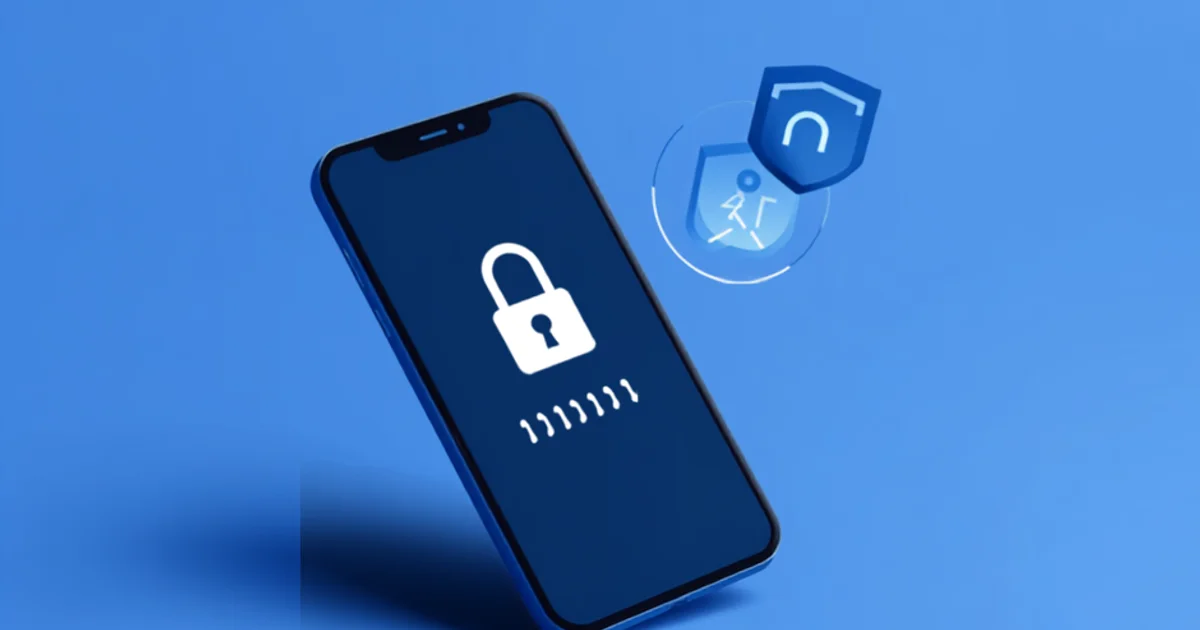
WhatsApp for Business describes two-step verification plainly: it is "the single most effective way to prevent someone else from taking over your account." Once it's turned on, moving your WhatsApp number to a new phone requires a six-digit PIN you choose — not just the SMS code that arrives on the SIM. That distinction matters, because SMS codes can be intercepted or redirected if a SIM is swapped or a phone is lost; a PIN that only you know closes that gap.
To turn it on: open WhatsApp Business → Settings → Account → Two-step verification, and set a PIN you don't use anywhere else. While you're in that settings menu, check Linked Devices too. If you don't recognize one, log it out. If a staff member who used to manage the account has left, this is the moment to update the PIN and clear their access, rather than assuming they'll simply stop using it.
If more than one person answers customer chats, resist the temptation to just share the login. Meta Business Suite lets you give team members their own access to a shared inbox, with defined roles — so nobody needs your PIN, and access can be removed for one person without resetting anything for everyone else.
Do the Same for Your Business Email or Google Account
Email is often the account that matters most, precisely because it's usually the one used to reset every other password — banking portals, Google Business Profile, hosting, social media. Google's own guidance on 2-Step Verification puts the purpose simply: it "add[s] an extra layer of security to your account in case your password is stolen," requiring your password and a second step (a code, a prompt, or a passkey) before anyone can sign in.
Two details from Google's documentation are worth knowing. First, when you register a new phone number for verification, Google may take up to seven days before fully trusting it — a deliberate delay that gives you a window to notice and stop an unauthorized attempt before it succeeds. Second, where they're supported, passkeys and hardware security keys go further than a text-message code, because they're specifically designed to resist phishing — a fake login page simply can't use them the way it can trick someone into typing a code.
Microsoft's security team, writing about account protection generally, put a number on why this one setting matters so much: enabling multi-factor authentication "can block over 99.9 percent of automated account compromise attacks." That figure is about automated, large-scale attacks — not a guarantee against every targeted attempt — but it's a strong reason this should be the first thing set up on any business account, starting with whichever one can reset the others.
Learn to Recognize Phishing Before It Works
Two-step verification protects your password. It doesn't stop you from being talked into handing over the second factor too, which is exactly what phishing tries to do. The U.S. Cybersecurity and Infrastructure Security Agency (CISA) teaches a simple three-step response: Recognize, Resist, Delete.
Recognizing the warning signs is most of the work. CISA lists the common ones: urgent or emotionally charged language pushing you to act immediately ("your account will be suspended," "confirm now or lose access"); requests for personal or financial details that a legitimate service wouldn't ask for by message; links that look almost right but aren't (a misspelled domain, or a shortened link hiding the real destination); and, though less reliable than it used to be, awkward grammar or formatting.
If a message claims to be from a bank, a supplier, Meta, or Google and asks you to click a link to "verify" something, don't click it. Instead, open the app or type the company's known website directly into your browser, or contact the sender through a number or channel you already trust — not one supplied in the suspicious message itself. As CISA puts it plainly: if a message looks suspicious, it probably is.
A Few More Habits Worth the Ten Minutes
CISA's broader small-business guidance points to several other steps that are easy to underrate:
- Keep apps and devices updated. Turn on automatic updates where possible — for WhatsApp Business, your phone's operating system, and any computer used for email or business software. Updates frequently patch the exact weaknesses attackers rely on.
- Back up what you can't afford to lose — customer records, invoices, product photos, chat exports — and actually test that a backup can be restored, not just that it exists. A backup nobody has opened in months is a hope, not a plan.
- Don't reuse passwords across accounts. If one weak or reused password leaks from an unrelated site, it becomes the key to everything else that shares it.
- Decide in advance who to tell if something goes wrong, even if that's just "message our regular customers on a channel other than the compromised one." A few minutes of thought now saves confusion during an actual incident.
If You Think You've Already Been Compromised
Move quickly, but calmly. On WhatsApp, re-registering your own phone number logs out any other device using your account — do that first, then reset your two-step PIN and remove any linked devices you don't recognize. For email or Google accounts, change the password immediately, review "recent activity" or active sessions and sign out anything unfamiliar, and check whether any auto-forwarding rules were quietly added to your inbox (a common trick to keep reading your mail after you've changed the password).
Then tell the people who might be affected. If customers may have received messages or payment requests from your account while it was compromised, a short, direct heads-up — sent from a channel that's still yours — does more to protect your reputation than staying quiet and hoping no one noticed.
None of this requires a security budget or a technical hire. It requires about fifteen minutes, once, and then a habit of checking it again whenever someone joins or leaves your team. For a business whose customer relationships increasingly live inside a phone, that's a small investment against a real and avoidable risk.